Trunk and Access Ports
How to setup Trunk and Access Ports
Intro
How I configure trunk and access ports
Prerequisites
VLANs are already created and configured like below:
| SSID | VLAN | Subnet | Purpose |
|---|---|---|---|
| - | 1 | 192.168.1.0/24 | Default (abandoned) |
| - | 10 | 10.10.10.0/24 | Management |
| wifi4home | 20 | 10.20.20.0/24 | Home |
| wifi4work | 30 | 10.30.30.0/24 | Work |
| wifi4iot | 40 | 10.40.40.0/24 | IoT |
| wifi4guest | 50 | 10.50.50.0/24 | Guest |
| - | 60 | 10.60.60.0/24 | Homelab |
Trunk Ports
Trunk ports will be configured from:
- router TO switch
- switch TO switch
- switch TO AP
Note! UniFi does not auto-sync port profiles. You must set both sides to a trunk port manually.
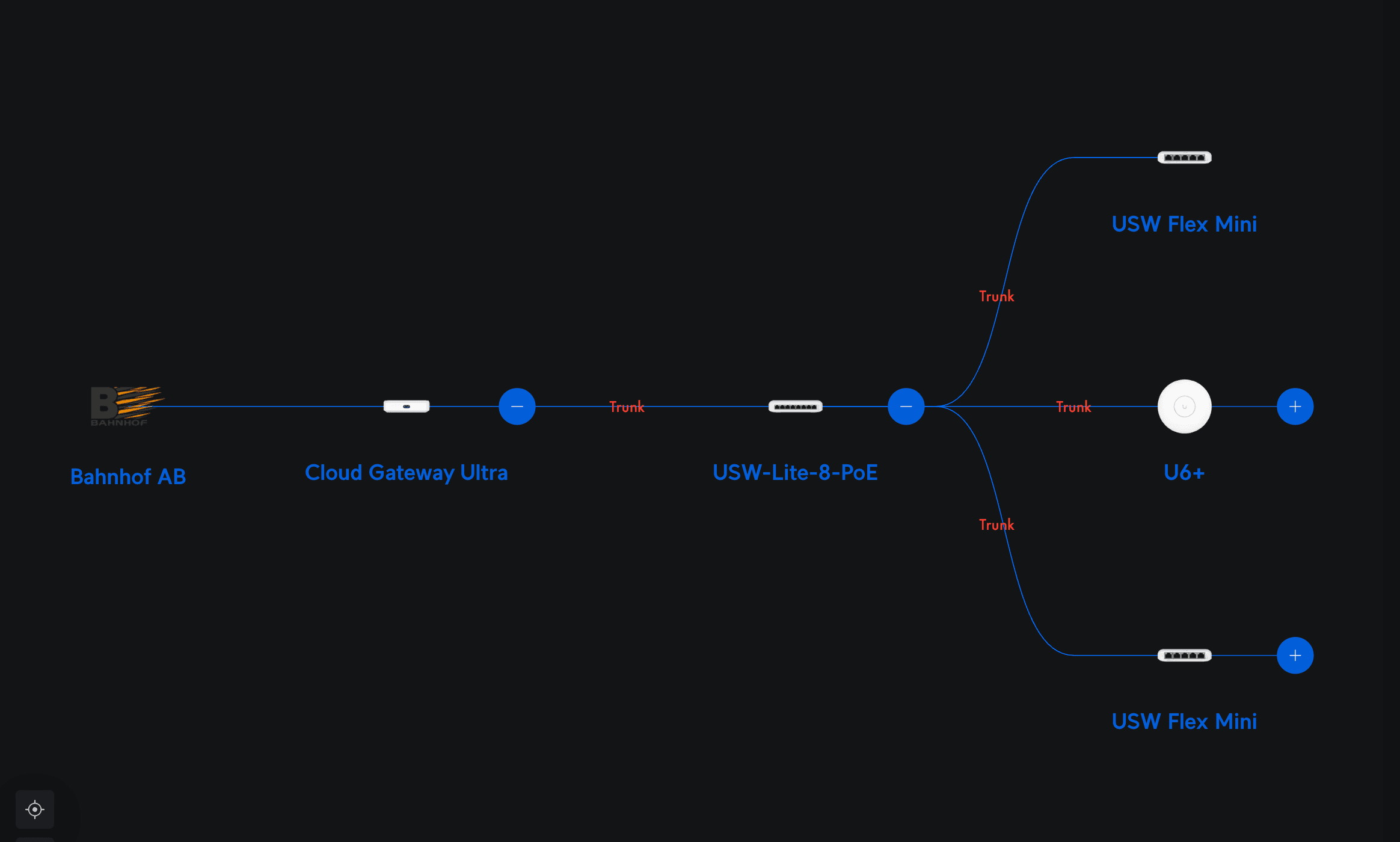
Access Ports
Access Ports will be configured from:
- switch TO camera device
- switch TO IoT device
- etc
Ethernet Ports
Create the following new Ethernet Ports profiles at /network/default/settings/profiles/.
Assign them to each port, this will also simplify future changes if needed
| Name | Native VLAN / Network | Tagged VLAN Management | PoE |
|---|---|---|---|
| Management (Access Port) | Management | Block All | yes |
| loT (Access Port) | Management | Block All | yes |
| Home (Access Port) | Management | Block All | yes |
| Work (Access Port) | Management | Block All | yes |
| Homelab (Access Port) | Management | Block All | yes |
| Guest (Access Port) | Management | Block All | yes |
| Trunk Port | Default | Allow All | yes |
Apply Ethernet Ports profile by selecting a port then clicking Advanced -> Manual then toggle on Ethernet Port profile and finaly select a Ethernet Ports profile.